


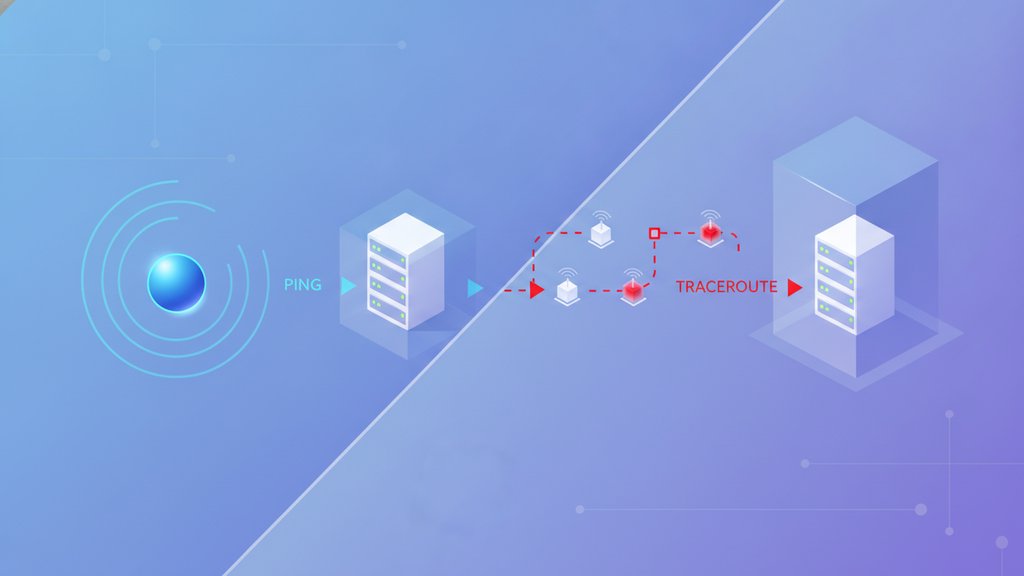
The core difference between ping and traceroute is what they measure: ping tells you whether a host is reachable and how long the round trip takes, while traceroute shows you the path packets travel to get there, listing every router (hop) in between. Reach for ping when you just need a quick yes/no on connectivity and latency, and reach for traceroute when something is slow or unreachable and you need to find exactly where the problem sits.
Content Table
What each tool actually does
Both tools lean on the same underlying protocol, ICMP (Internet Control Message Protocol), but they ask very different questions.
- Ping sends an ICMP echo request to a target and waits for the echo reply. It reports round-trip time (RTT) in milliseconds and whether the packet came back at all. That is it: reachability plus latency.
- Traceroute sends a series of packets with deliberately small Time To Live (TTL) values. The first packet has a TTL of 1, so the first router drops it and reports back. The second has a TTL of 2, so the second router replies, and so on. Each "expired" reply reveals one more hop along the route, building a map from you to the destination.
If you want a deeper look at how the echo mechanism works under the hood, our explainer on what ping means in networking walks through it step by step.
Ping vs traceroute side by side
| Aspect | Ping | Traceroute |
|---|---|---|
| Main question | Is the host reachable and how fast? | What path do packets take to get there? |
| Output | RTT per packet, success or timeout | Ordered list of hops with latency at each |
| Packets sent | Echo requests to one target | Packets with increasing TTL values |
| Best for | Quick connectivity and latency checks | Locating where a route breaks or slows |
| Speed | Near-instant | Slower, since it probes hop by hop |
When to use ping
Ping is your first move when you need a fast answer. It is the network equivalent of knocking on a door to see if anyone is home.
- Confirming a server is up: A successful reply means the host answered. Consistent timeouts suggest it is down, blocking ICMP, or unreachable.
- Measuring latency: RTT values tell you how responsive a connection is. Single digits (1 to 20 ms) are excellent, while 200 ms and up will feel sluggish for things like gaming or video calls.
- Spotting packet loss: Send a series of pings and watch how many come back. Losing 2 out of 10 points to an unstable link.
- Sanity-checking before deeper diagnostics: If ping works fine, the problem is probably higher up the stack (DNS, the application, a firewall on a specific port) rather than basic connectivity.
When to use traceroute
Traceroute earns its keep when ping tells you something is wrong but not where. By revealing each hop, route tracing lets you pinpoint the exact router or network segment causing trouble.
- Latency spikes: If a connection is slow, traceroute shows which hop the delay starts at. A jump from 15 ms to 180 ms between two hops is your prime suspect.
- Unreachable destinations: When packets stop returning at a certain hop, that point is likely where routing fails or a firewall blocks traffic.
- Routing changes: Comparing traceroutes over time reveals when traffic gets rerouted through a slower or more distant path.
- Crossing networks: Hop analysis helps you tell whether a slowdown lives inside your own network, your ISP, or somewhere on the wider internet beyond your control.
How to read traceroute output
Each line in a traceroute is one hop, numbered in order from you to the destination. A typical line shows the hop number, the responding router's address, and three latency measurements (because traceroute usually probes each hop three times).
1  192.168.1.1     1.2 ms   1.1 ms   1.3 ms
2  10.0.0.1        8.4 ms   8.1 ms   8.9 ms
3  72.14.215.85    14.2 ms  13.9 ms  14.5 ms
4  * * *
5  142.250.72.110  22.1 ms  21.8 ms  22.4 ms
Reading it line by line:
- Hop 1 is almost always your own router or gateway, with tiny latency.
- Steady climbing numbers are normal. Each hop adds a little distance, so latency rises gradually.
- Asterisks (* * *) mean that hop did not reply within the timeout. One row of asterisks is usually harmless: that router just declines to answer ICMP. Asterisks all the way to the end suggest the path genuinely breaks there.
- A sudden, sustained latency jump that stays high for every hop after it points to a congested or distant link at that step.
Using them together
The two tools are partners, not rivals. A practical troubleshooting flow looks like this:
- Ping the destination. If it replies quickly, connectivity is fine and you can look elsewhere (DNS, the app, a blocked port).
- If ping is slow or fails, run a traceroute to the same target.
- Find the hop where latency spikes or replies stop. That is your fault location.
- Decide who owns it. Early hops are your network or ISP; later hops belong to other providers you cannot fix directly.
This combo also helps when an email or web request keeps failing. If the destination pings fine but your messages still bounce, the issue may be reputation-based rather than network-based, in which case our tool IP Blacklist Checker is the better next stop. For path problems specifically, network diagnostics tools like ping and traceroute remain the fastest way to narrow things down.

Run a ping check before you reach for traceroute
Our free online Ping Tool sends ICMP echo requests from our server and shows round-trip time and reachability in real time, the exact first step in the ping vs traceroute workflow.
Try the Ping Tool →
Frequently asked questions
No. They answer different questions. Ping confirms whether a host is reachable and how long the round trip takes. Traceroute maps every router between you and the target. Traceroute is slower because it deliberately probes each hop in sequence, but the extra time buys you location detail ping cannot provide.
Asterisks mean that hop did not send a reply within the timeout window. Usually it just means that particular router ignores ICMP probes, which is harmless. If asterisks continue all the way to the destination and packets never arrive, the route likely breaks at that point.
Start with ping. It is faster and tells you immediately whether basic connectivity and latency are healthy. If ping is clean, the issue is probably elsewhere. If ping is slow or fails, follow up with traceroute to find the specific hop where the route degrades or breaks.
Not necessarily. A router may deprioritize answering ICMP probes while forwarding real traffic instantly, producing a high reading on that single line. What matters is the trend: if latency jumps at one hop and stays high for every hop afterward, that step is the real bottleneck.