
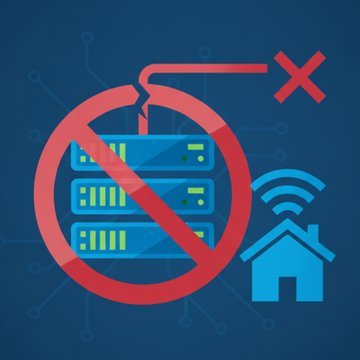

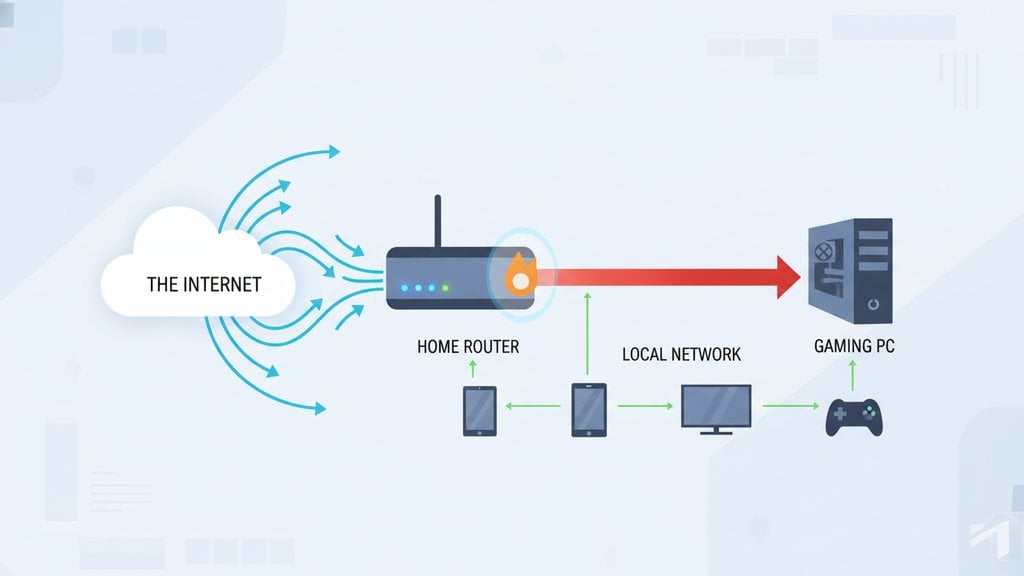
Port forwarding explained simply: it's a rule you configure on your router that says "any traffic arriving on port X should be sent to this specific device on my local network." Without it, your router acts as a gatekeeper that blocks all unsolicited incoming connections. With it, you punch a deliberate hole so that one service on one machine becomes reachable from the internet.
If you've ever tried to host a game server, run a home security camera, or set up remote desktop access and couldn't connect from outside your home network, a missing port forwarding rule was almost certainly the reason.
Content Table
- How Port Forwarding Actually Works
- NAT Port Forwarding and Why It Exists
- TCP vs UDP Port Forwarding
- Port Forwarding Setup: Step by Step
- How to Verify Port Forwarding Is Working
- Port Forwarding Failed: Common Causes and Fixes
- When to Use Port Forwarding
- Port Forwarding Security Risks
- Port Forwarding Alternatives
How Port Forwarding Actually Works
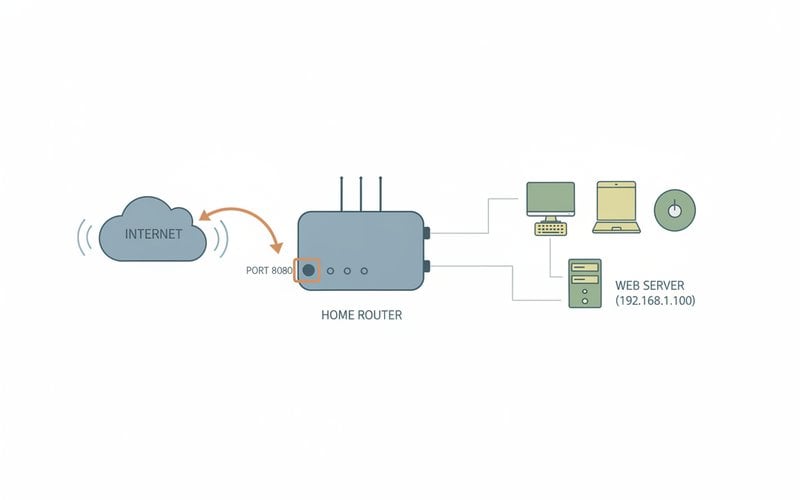
Your home network has two address spaces. Every device on your local network gets a private IP address (like 192.168.1.50) assigned by your router. But to the internet, all those devices share a single public IP address (like 203.0.113.42) that your ISP assigned to your router.
When a packet arrives at your router's public IP on a specific port, the router needs to decide what to do with it. By default, it drops it. A port forwarding rule changes that behavior by telling the router: "When traffic arrives on port 25565 (Minecraft), forward it to 192.168.1.50 on the same port."
The router rewrites the destination IP in the packet header (from its own public IP to your device's private IP) and sends it on. The device replies, the router rewrites the source IP back to its public IP, and the response goes out to the internet. The remote user only ever sees your public IP. This translation is called NAT, and port forwarding is a specific instruction layered on top of it.
NAT Port Forwarding and Why It Exists
Network Address Translation (NAT) was invented primarily to stretch the limited pool of IPv4 addresses. Instead of giving every device its own public IP, NAT lets thousands of devices share one. The trade-off is that unsolicited incoming connections have no obvious destination inside the network.
NAT port forwarding (sometimes called "static NAT" or "destination NAT") is the mechanism that resolves that ambiguity. You're essentially pre-registering a forwarding rule in the router's NAT table so it knows exactly where to send traffic before any connection arrives.
There are a few flavors worth knowing:
- Static port forwarding: A permanent rule mapping one external port to one internal IP and port. Most home use cases fall here.
- Port range forwarding: Forwards a range of ports (e.g., 6881-6889 for BitTorrent) to a single device.
- Port triggering: A dynamic variant where the router opens an inbound port only when it detects outbound traffic on a "trigger" port. Closes automatically when idle. Useful when you don't want a permanently open port.
- DMZ (Demilitarized Zone): Forwards all ports to one device. Effectively removes NAT protection for that device. Risky unless you know exactly what you're doing.
TCP vs UDP Port Forwarding
When you set up a forwarding rule, your router asks whether the rule applies to TCP, UDP, or both. The right answer depends on what the service uses.
| Protocol | How It Works | Common Use Cases |
|---|---|---|
| TCP | Connection-oriented. Guarantees delivery and order via handshake. | Web (HTTP/HTTPS), SSH, FTP, remote desktop (RDP), email (SMTP) |
| UDP | Connectionless. Sends packets without confirmation. Faster, less overhead. | Online gaming, video streaming, VoIP, DNS, VPN (WireGuard) |
| Both (TCP+UDP) | Rule applies to both protocols on the same port. | Many game servers, SIP, some peer-to-peer apps |
If you're unsure which protocol a service uses, check its official documentation. Minecraft Java Edition uses TCP 25565. WireGuard VPN uses UDP 51820. Plex Media Server uses TCP 32400. Getting this wrong means the forwarding rule exists but traffic is silently dropped.
Port Forwarding Setup: Step by Step
The exact menus differ by router brand (Asus, TP-Link, Netgear, Linksys, etc.), but the process is the same everywhere.
-
Find your router's admin panel.
Open a browser and go to your router's gateway IP, usually
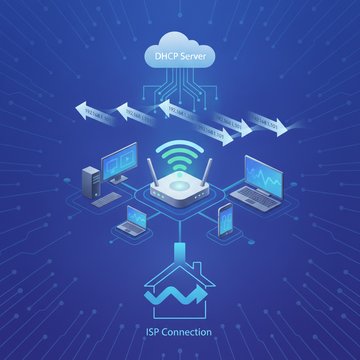
192.168.1.1or192.168.0.1. Log in with your admin credentials (often printed on the router label). - Assign a static local IP to the target device. Port forwarding rules point to an IP address. If your device's local IP changes (via DHCP), the rule breaks. Set a DHCP reservation in the router, or configure a static IP on the device itself.
- Find the port forwarding section. Look under "Advanced," "NAT," "Virtual Server," or "Port Forwarding" depending on your router's firmware. Asus routers call it "Virtual Server / Port Forwarding." TP-Link calls it "Virtual Servers."
-
Create a new rule.
Fill in:
- External (or "public") port: the port number internet traffic arrives on
- Internal (or "private") IP: your device's local IP address
- Internal port: usually the same as the external port, unless you're remapping
- Protocol: TCP, UDP, or Both
- Save and apply. Most routers apply rules immediately without a reboot.
- Verify the rule is working (see the next section).
How to Verify Port Forwarding Is Working
After saving your rule, you need to confirm traffic is actually reaching your device. The most reliable way is to test from outside your network, because your router won't forward traffic you generate from inside your own LAN (that's normal NAT behavior, not a bug).
The cleanest approach is to use an external port checker tool. Enter your public IP address and the port number you forwarded, and the tool attempts a TCP connection from its own servers. If it reports the port as open, your rule is working. If it reports closed or timeout, something in the chain is still blocking the traffic.
Things to confirm before concluding the rule is broken:
- The service you're forwarding to is actually running on the target device and listening on that port.
- The device's local firewall (Windows Defender Firewall, iptables, ufw) isn't blocking the inbound connection.
- You're testing with your public IP, not your private one.
- The router rule is saved and active (some routers require enabling a toggle per rule).
Port Forwarding Failed: Common Causes and Fixes
Port forwarding is one of those things that looks simple but has a surprisingly long list of places where it can silently break. Here are the most common culprits.
| Symptom | Likely Cause | Fix |
|---|---|---|
| Port shows as closed from outside | ISP blocks the port (common for port 25, 80, 443 on residential lines) | Use a non-standard port or contact ISP to unblock |
| Port shows as timeout | Double-NAT (two routers in chain) or ISP-level firewall | Enable bridge mode on ISP modem, or forward on both routers |
| Works sometimes, breaks randomly | Target device's local IP changed via DHCP | Set a DHCP reservation for the device's MAC address |
| Rule saved but no effect | Host firewall blocking inbound traffic | Add an inbound allow rule in Windows Firewall or iptables |
| Can't test from inside the network | NAT hairpinning not supported by router | Test from a mobile connection (turn off Wi-Fi) or use an external checker |
| Dynamic public IP breaks access | ISP reassigns your public IP periodically | Use a Dynamic DNS (DDNS) service to maintain a stable hostname |
When to Use Port Forwarding
Port forwarding makes sense when you need a service running on a device inside your network to be directly reachable from the internet, and you control the router. Common real-world scenarios:
- Game servers: Minecraft (TCP 25565), Valheim (UDP 2456-2458), CS2 (UDP 27015)
- Remote desktop: RDP on Windows (TCP 3389), VNC (TCP 5900)
- Home media servers: Plex (TCP 32400), Jellyfin (TCP 8096)
- Security cameras / NVR systems: Accessing footage remotely
- Self-hosted web services: Running a web server or API on a home machine
- SSH access to a home server: Often remapped to a non-standard port like 2222 to reduce bot traffic
- Peer-to-peer file sharing: Improving speeds and seeding ratios in BitTorrent clients
You generally don't need port forwarding for outbound-only services. Streaming Netflix, browsing the web, or using Zoom all work fine without it because your router already tracks outbound connections and lets the responses back in automatically.
Port Forwarding Security Risks
Opening a port is opening a door. Anyone on the internet can knock on it, and if the service behind it has a vulnerability, that's a real attack surface. Port forwarding security risks are worth taking seriously.
- Brute-force attacks: RDP on port 3389 is relentlessly scanned by bots. Exposed RDP servers are among the most common ransomware entry points. The U.S. Cybersecurity and Infrastructure Security Agency (CISA) has repeatedly warned about exposed RDP as a primary ransomware vector.
- Unpatched services: If the software listening on the forwarded port has an unpatched vulnerability, an attacker can exploit it directly. This is especially risky for older NAS firmware, IP cameras, and home automation software.
- Weak credentials: A forwarded SSH or RDP port with a weak password is essentially an open invitation.
- Lateral movement: Once an attacker reaches one device through a forwarded port, they can often pivot to other devices on your local network.
If you must use port forwarding, reduce the risk with these practices:
- Use strong, unique passwords on any service you expose.
- Enable two-factor authentication where possible.
- Change default ports (e.g., move SSH from 22 to a high random port). This won't stop determined attackers but dramatically reduces automated bot traffic.
- Keep the software behind the forwarded port updated.
- Restrict access by source IP in your router's firewall if you only need access from specific locations.
- Close rules you no longer need. Unused open ports are pointless risk.
Port Forwarding Alternatives
For many use cases, there are better options than punching holes in your router. These port forwarding alternatives are worth considering, especially if security is a priority or your ISP blocks inbound connections.
- VPN (self-hosted): Run a VPN server (WireGuard or OpenVPN) at home. You only expose one port for the VPN, and all other services stay hidden behind it. WireGuard on UDP 51820 is the modern standard. This is the recommended approach for remote desktop and file access.
- Reverse proxy tunnels: Tools like ngrok or Cloudflare Tunnel create an outbound tunnel from your machine to a cloud endpoint. No inbound ports needed, works even behind CGNAT (carrier-grade NAT where you don't have a public IP at all).
- Tailscale / ZeroTier: Mesh VPN services that connect your devices directly without any router configuration. Traffic goes peer-to-peer or through relay servers. No port forwarding, no dynamic DNS headaches.
- Cloud hosting: For anything that needs to be reliably public-facing (a web server, API, game server), a cheap VPS (Virtual Private Server) is often more practical than forwarding from a home connection with a dynamic IP.
- UPnP (Universal Plug and Play): Many routers support UPnP, which lets applications automatically request port forwarding rules. Convenient but a security risk if any malicious software on your network exploits it. Generally recommended to disable UPnP on the router and configure rules manually.

Check if your port forwarding is actually working
After setting up port forwarding, use our free port checker to confirm the port is open from outside your network. Enter your public IP and port number to instantly see if the connection goes through, or whether something in the chain is still blocking it.
Check a Port Now →
The port forwarding rule itself still works, but anyone trying to connect needs to know your current public IP. Since residential ISPs frequently reassign IPs, the solution is Dynamic DNS (DDNS). Services like DuckDNS or No-IP give you a stable hostname (e.g., myhome.duckdns.org) that automatically updates to point to your current IP. Your router's built-in DDNS client can handle the updates automatically.
No. Each external port can only be forwarded to one internal IP address at a time. If you need two devices to run the same service, you have to use different external ports. For example, you could forward external port 2222 to device A on port 22 (SSH) and external port 2223 to device B on port 22. The service on each device still listens on port 22 locally, but you reach them on different external ports.
Most home routers don't support NAT hairpinning (also called NAT loopback), which is the ability to connect to your own public IP from inside the network. When you try, the router either drops the packet or routes it incorrectly. To test properly, use your phone's mobile data (turn off Wi-Fi), ask a friend to connect, or use an external port checker tool that tests from its own servers outside your network.
Carrier-Grade NAT (CGNAT) means your ISP puts multiple customers behind a single public IP address, adding a second layer of NAT between you and the internet. Because the public IP doesn't belong exclusively to you, there's no way to forward ports to your router from the ISP's side. CGNAT is increasingly common on mobile broadband and some cable ISPs. Workarounds include requesting a dedicated public IP from your ISP, or using a tunnel-based solution like Cloudflare Tunnel or a VPS with a reverse proxy.
They're related but different. Port forwarding is a NAT rule on your router that redirects traffic to an internal device. Opening a firewall port is a rule on a firewall (which could be on the router, the OS, or a dedicated appliance) that permits traffic to pass rather than be blocked. For a service to be reachable from the internet, you typically need both: a port forwarding rule on the router and an inbound allow rule on the device's own firewall. Forgetting either one is a common reason port forwarding appears to fail.
Port forwarding itself adds negligible overhead. The router's NAT table lookup and IP rewriting happen in hardware or low-level firmware on modern routers, so the performance cost is essentially zero. What does affect speed is your ISP connection bandwidth, the device's processing power, and network congestion. Forwarding a port for a file server or game server won't make your connection faster or slower by itself.